
Good Lock
Samsung explains KeysCafe special character keyboard limitations


Some Galaxy users have reported an issue while creating special character keyboards in Samsung KeysCafe. When they create a keyboard on page 1 and then start creating another keyboard on page 2, changes on page 2 can also affect page 1.
For example, if users delete a key or change its size on page 2, the same change may appear on page 1. This makes it difficult to create different keyboard layouts on each page.
Users want to complete the keyboard on page 1 and keep it unchanged while creating a new keyboard on page 2. However, the current design does not allow users to customize every page completely independently.
According to the community moderator, the special character keyboard uses the same layout for all pages. This means that if users change the width or height of a key at a particular position on page 1, the key at the same position on other pages will also change.
The moderator explained that this is a limitation of the special character keyboard feature. Therefore, some layout changes will affect all pages, even if users want to design each page differently.

However, if the same key is added to other pages automatically or unexpected changes occur while editing, it may be a separate issue. In such cases, users should report the problem through the Send Error option immediately after it happens.
Users should also attach a video showing the issue and provide the relevant system logs. This will help the development team understand the problem and investigate it further.




Samsung has shared an important message for Galaxy users who use Good Lock with One UI 9.0. The company has confirmed that the Good Lock updates needed for One UI 9.0 are now ready.
The company advises users to update their Good Lock apps and modules to the latest version if they are using them on One UI 9.0. This will help make sure the apps work properly with the new software.
Updating Good Lock is simple. Open the Good Lock app on your Galaxy phone and go to the Apps tab. At the top, you will see the “Update All” option. Tap the update icon next to it to install all available updates.

You can also update each Good Lock app separately. Just find the app or module you want to update and tap the update icon next to it.
Good Lock offers different tools that let Galaxy users change and customize their phones. Since One UI 9.0 is a new software version, some Good Lock modules need updates to work correctly with it. Samsung’s latest message means users can now update their Good Lock apps and continue using them on One UI 9.0.
So, if you have updated your Galaxy phone to One UI 9.0, it is a good idea to check Good Lock for pending updates. Open the app, go to the Apps tab, and install the latest available versions before using the modules.

Samsung Galaxy S26 Ultra users are facing a clock problem after updating their phones to One UI 9.0. The issue affects the lock screen and Always On Display.
Some users say the clock looks normal when they set it up in the LockStar app. The time and date appear in the correct places. But after applying the settings, the clock looks different on the actual lock screen.
The time can move very high on the screen and may almost touch the top. The date can also appear much farther away from the time. The same problem can happen on the Always On Display.
A Samsung Community moderator has confirmed that this is a known issue. According to the moderator, the problem happens when users use a clock style from Good Lock’s ClockFace.
Samsung’s development team is now checking the issue. Until it is fixed, Samsung recommends using the phone’s default clock instead of a ClockFace clock.

This is only a temporary solution. Users can switch back to their preferred ClockFace style after Samsung fixes the problem
Samsung also asked users to report the issue if it still happens with the default clock. Users should use the Send Error option and send the error logs immediately after the problem appears. The logs can help Samsung find the cause and fix the issue.
For now, Galaxy S26 Ultra users facing this problem can use the default clock and wait for a future update that may resolve the issue.

Some Samsung users are facing a new problem with the Home Up app. The issue is related to the app’s backup and recovery feature.
Users have reported that after backing up their home screen, they cannot restore it properly. When they try to recover the backup, the file may show an error saying that it is broken or damaged.
A Samsung Community moderator has confirmed that the company is aware of the problem. Samsung says its development team is currently investigating the issue.
According to Samsung, the problem can happen when users change the folder label colors in Home Up. These colors are used for the names shown under folders on the home screen.

Samsung says the issue needs changes to the platform software. The company plans to fix it in a future software update. However, Samsung has not given a specific date for the update yet.
Until the problem is fixed, Samsung recommends that users change the folder label colors back to the default colors before using the Home Up backup and recovery feature.
Samsung also asked users to report the problem if it happens even when they have not changed the folder label colors. Users can send an error report with logs to help Samsung find the cause of the problem.
For now, Home Up users should keep their folder label colors at the default setting when making or restoring backups. This is Samsung’s current recommended workaround while the company works on a permanent fix.
Samsung users have reported a small problem with the Good Lock Home Up app after updating their phones to One UI 9.0. The issue is related to the DIY Home feature.
Users say that icons inside hidden folders now appear a little late. When they open a hidden folder placed under an image, the icon takes about half a beat to appear.
This delay was not seen on One UI 8.5. Users say the DIY feature worked normally before the update. However, after installing One UI 9.0, the icon started appearing late. The problem mainly happens with hidden folders. Users have also reported that the feature works normally when they simply pull out the folder.
The issue has now been reported to the Good Lock team. A Good Lock community moderator confirmed that Samsung’s development team is investigating the problem.
The moderator said that the developers are aware of the delay with icons in hidden folders when using DIY Home. Samsung also confirmed that the issue will be improved through a future software update.

However, Samsung has not shared when the fix will be released. Until then, users facing this problem may have to wait for a new update to Home Up or the related software.
Users can also try using a different folder setup if they want to avoid the delay for now.
The issue appears to be related to the One UI 9.0 update, as users say the feature worked properly on One UI 8.5. Samsung is now working on a fix, which should improve the DIY Home experience in a future update.
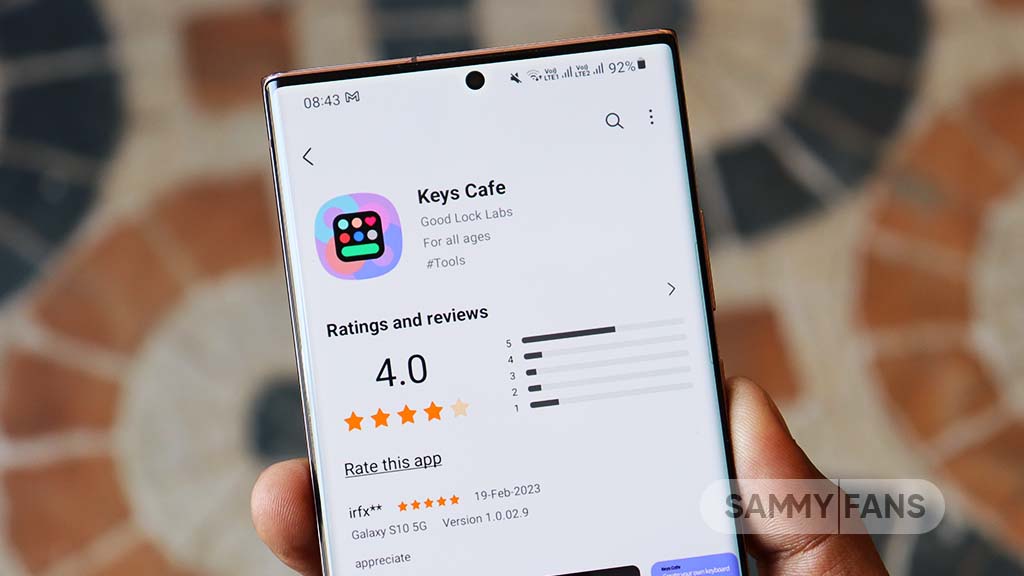
Some Samsung users have reported a problem with the Korean keyboard in Keys Cafe. The issue is related to the essential keys (‘ㅂ’, ‘ㅈ’). These keys are important for entering Korean double consonants.
Normally, when users press the Shift key with ㅂ, it should enter ㅃ. When they press Shift with ㅈ, it should enter ㅉ. However, some users noticed that the key design does not change and still shows ㅂ or ㅈ.
The keyboard input itself works correctly. When the Shift key is pressed, the correct double consonants are entered. The problem is only with the symbol shown on the keyboard key.
According to a Samsung Community moderator, this issue can happen when the essential keys (‘ㅂ’, ‘ㅈ’) are deleted and then added again in Keys Cafe. After doing this, the Shift function works, but the double consonants may not be displayed correctly on the keys.

Samsung recommends that users should not delete these essential keys when creating a new keyboard. Instead, users should keep the original (‘ㅂ’, ‘ㅈ’) keys and modify them as needed. This can help prevent the display problem.
Samsung has acknowledged the issue and said it will fix it in a future update. Until then, users should keep the essential keys (‘ㅂ’, ‘ㅈ’) and modify them instead of deleting and adding them again. This is the recommended way to avoid the problem.
-
 One UI12 hours ago
One UI 9.0 official update now rolling out to these Samsung phones
-

 One UI2 days ago
Galaxy S23 phones should be getting One UI 9.0 update soon
-

 One UI2 days ago
One UI 9.0 (Android 17) arrives for Galaxy S24 phones globally
-
Issues1 day ago
Samsung Galaxy phones get stuck after One UI 9 update, here’s a fix