
Samsung
One useful Camera feature is gone, and Samsung is ‘reviewing’ it


Galaxy users are missing one useful Camera Scan feature in their phones, and Samsung appears to be reviewing its relaunch. Samsung updates are not always beneficial, as they bring functional changes that sometimes degrade the user experience.
The same happened to the native Camera Scan feature.
Select Galaxy phones have removed the instant sharing feature tied to Camera Scan, and Samsung is aware of it. The company’s moderator responded to user comments and dropped a satisfactory answer in the community.
Samsung Camera and Gallery come with a Scan feature, offered as the “Yellow T” icon. The icon appears whenever the camera or gallery detects a copyable text file in real-time camera viewfinder or gallery preview.
Tapping the icon triggers the system to recognize text in the picture and allows users to save a scanned file. Previously, this feature had an instant sharing feature that didn’t require users to save a file in the Gallery and then share.
Just tap the T icon, let the system recognize visible text content, like an optical character reader, and offer the sharing button immediately.
Camera Scan isn’t a heavily used feature for all; it is for many. Users rely on the Samsung Camera app for their frequent requirements. The removal of the instant scan feature has added an additional step for the same task.

Samsung’s camera moderator confirmed to have “forwarded the suggestion regarding the scan draft saving feature to the relevant department.” A comprehensive review will be conducted to explore the relaunch of the feature in the future.
It seems the shift is caused by a Samsung Gallery and Camera app update. One UI 8.5 is the latest official release, and some models have this feature. Meanwhile, Galaxy S phones are on One UI 8.0, lacking the instant sharing button.


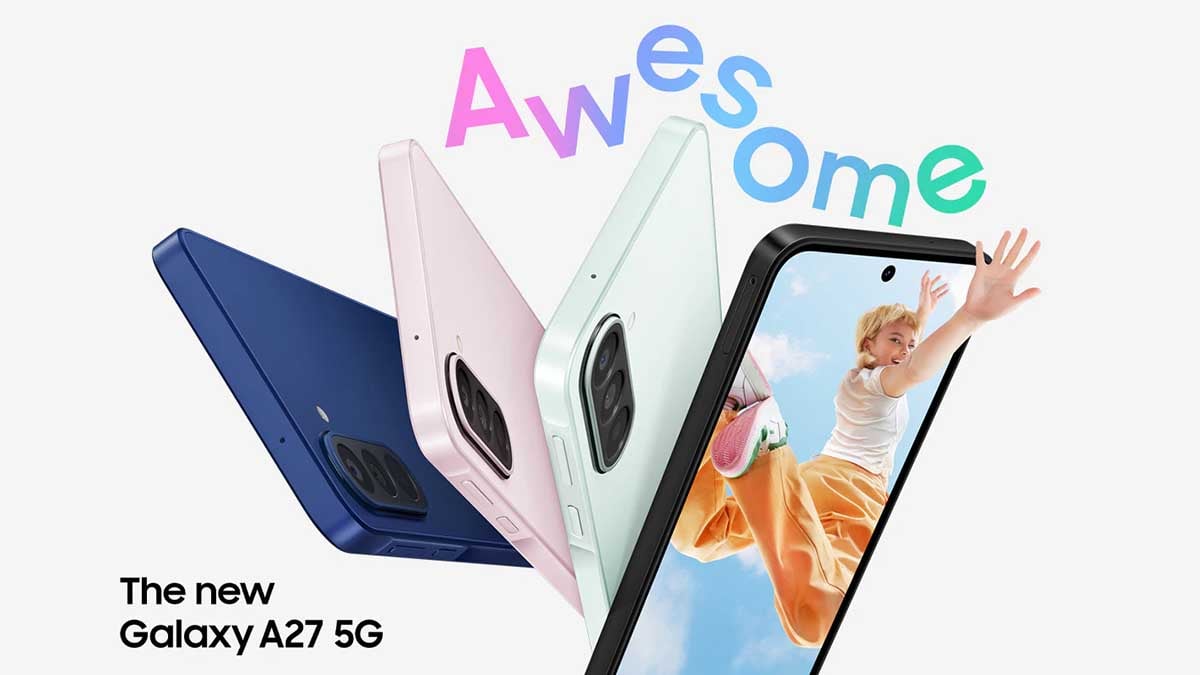
This June, Samsung has silently expanded its affordable 5G smartphone lineup with the Galaxy A27 5G, bringing a One UI 8.5 preinstalled, refreshed design and several meaningful upgrades over last year’s Galaxy A26 5G.
Samsung has replaced the Galaxy A26’s older U-shaped notch design with a modern punch-hole display on the Galaxy A27. This gives the phone a cleaner front look and makes it feel closer to the premium Galaxy lineup.
The Galaxy A27 5G comes with a 6.7-inch Super AMOLED display featuring FHD+ resolution and a 120Hz refresh rate. While the core display experience remains familiar, the new punch-hole design makes the device look more premium.
Samsung has equipped the Galaxy A27 5G with a Snapdragon 6 Gen 3 processor paired with 8GB RAM and 256GB storage. The phone also supports microSD expansion up to 2TB, giving buyers more flexibility for apps, photos, and videos.
Galaxy A27 brings five major upgrades over Galaxy A26
The punch-hole display, front camera OIS, DeX support and extended security updates make it a more refined upgrade over the Galaxy A26 for users looking for a budget-friendly phone.
1. Punch-hole display replaces the old notch
The Galaxy A27 moves to a punch-hole display, replacing the Galaxy A26’s U-shaped notch.
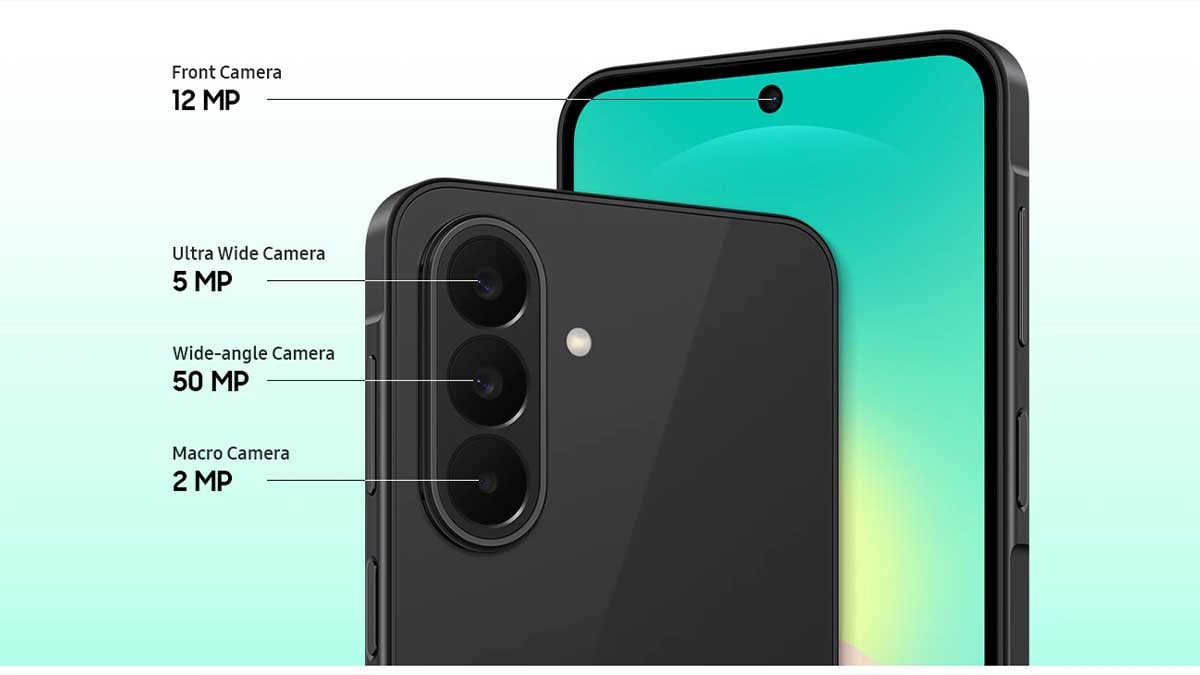
2. Improved camera setup
Compared to the Galaxy A26, the ultra-wide camera resolution drops from 8MP to 5MP, while the dedicated macro sensor has been replaced by a depth sensor.
3. Front camera gains Optical Image Stabilization
The Galaxy A27 features a 12MP front camera compared to the Galaxy A26’s 13MP selfie camera. While the resolution is slightly lower, Samsung has added OIS support.
4. Samsung DeX support arrives on the A-series
Samsung has added DeX support to the Galaxy A27, allowing users to access a more desktop-like experience with compatible displays and accessories.
5. Longer software support
The Galaxy A27 comes with security updates promised until July 2032, extending its usable lifespan.
The Galaxy A27 5G is not a major hardware overhaul, but Samsung has focused on the areas buyers notice most: design, software longevity, and useful features.

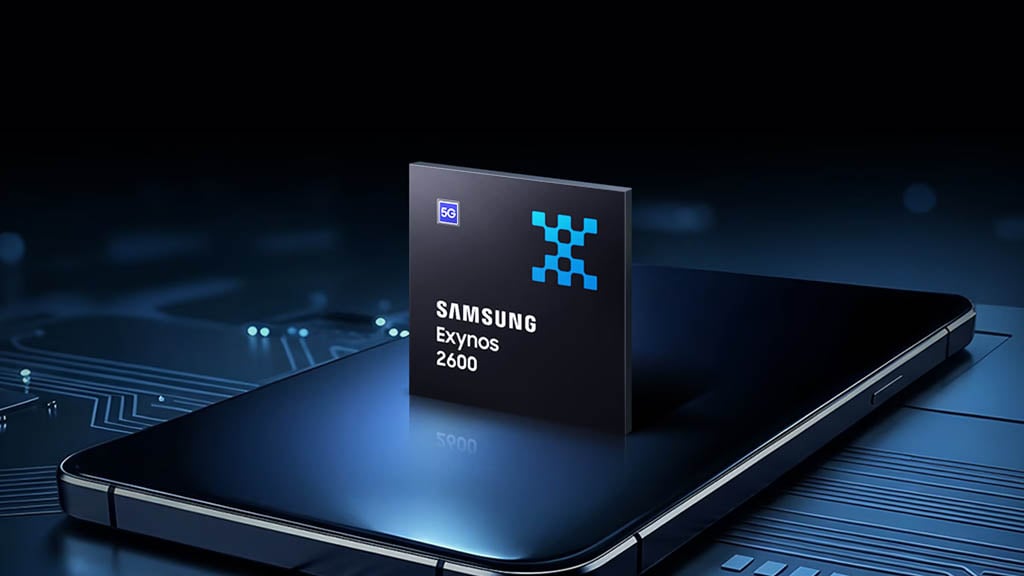
Samsung just dropped fresh MLPerf numbers on the Exynos 2600, and the result is quietly impressive. While everyone obsesses over flagship Snapdragon wins, Samsung’s in-house 2nm chip (already shipping in Galaxy S26 and S26+) is showing real progress on the one thing that actually matters for future phones: fast, local AI.
Key results from Samsung’s latest tests (via @SemiconductorsX):
- Mobile-BERT (NLP inference): 1199.57 QPS – 2.1x better than Exynos 2500
- Stable Diffusion (image gen): 0.53 QPS – 2.4x improvement
This lines up with Samsung’s earlier internal claim of 113% better generative AI performance on the NPU. It is built on the industry’s first mobile 2nm GAA process, aimed squarely at responsive on-device agentic AI and local generation instead of cloud round-trips.
These are real, public benchmarks (similar to industry-standard MLPerf tests). Samsung’s main point is clear: The Exynos 2600 isn’t just trying to match Snapdragon in regular speed and graphics. Instead, it’s heavily focused on making on-device AI fast, private, and feel instant – all running directly on your phone without needing the internet. Still, these results are encouraging.

Source – Samsung | Via – Yonhap
If you are tired of AI features that only work with a strong internet connection, this is worth watching. Can Samsung finally make Exynos the AI champion in 2026 phones, or will Snapdragon still dominate the flagship market?

One UI 8.5 comes with a redesigned Samsung Clock app, bringing UI tweaks across Alarm, World clock, Stopwatch, and Timer. The new user interface is visually appealing, with Samsung bringing modern aesthetics to Galaxy devices.
Samsung Clock app has four key pillars: Alarm, World clock, Stopwatch, and Timer. The new app version in One UI 8.5 has adopted major design changes over One UI 8.0. Let’s explore the design changes side-by-side:
Alarm
- Floating tab + gradient pink background
- All alarms combined in a single card with thin line separators
- Alarm Group view redesign (bigger card, space-saving)
Samsung revamped the Alarm screen with a visually appealing design. The new floating tab is also applied to the Samsung Clock app, realising the Ambient Design language. The page background features a gradient tint adopting a pink hue.
In One UI 8.0, the Alarm page adds separate cards for each alarm you set. One UI 8.5 changes that approach by combining all alarms in a single card, while the separation happens with a thin line.

Alarm Group view also has notable redesigns for Samsung users. Creating an Alarm group in One UI 8.5 slaps a big fatty card above the alarm list. One UI 8.5 does the same, while saving space to show more groups in the same area.

World clock
- Map preview background (replacing white solid)
- Dark-shaded cards
- Time zone converter revamp (map background + cards + bottom slider)
- Country card interface redesign (lighter blue ocean shade + dark cards)
- Smoother map animations
Samsung has replaced the White solid background in the World clock with a relevant map preview in One UI 8.5. To keep the visibility clean, the cards feature in Dark shades, rather than retaining the display mode preference.
The time zone converter page has also been revamped. While the One UI 8.0 version offers a list view, One UI 8.5 has a map background, and cards are aligned to look more engaging. The time selector slider has been added to the bottom.

Samsung’s Clock has a brand new interface for the World clock’s Country card interface. The shade of Blue used for the ocean has been tweaked to a lighter shade. Card has also adopted dark to retain visibility and complete the design.
Animations feel smoother and more reliable while exploring the map to find and add a country to the world clock. It’s a minor change, but deliver you the feeling that Samsung has made its Clock app way more modern than before.

Left – One UI 8.0 | Right – One UI 8.5
Stopwatch
- Analog clock face added alongside digital readout
- Gradient background + depth effects
- Lap and Stop buttons now in circular background containers
One UI 8.5 adds an analog clock face alongside the digital readout, complete with a circular dial, tick marks, and moving hands.

One UI 8.0 only offers a digital display, making the One UI 8.5 stopwatch significantly more visually engaging.

The stopwatch background and layout in One UI 8.5 carries the same gradient treatment and depth effects seen elsewhere. One UI 8.0’s stopwatch looks comparatively sparse and undesigned.

In One UI 8.5, the Lap and Stop action buttons now sit inside circular background containers, giving them more visual weight and making them easier to tap. In One UI 8.0, these buttons had no background fill, just bare icons.

Timer
- Gradient background (replacing flat monochrome)
- Preset time buttons with new shapes
- Start button with rounded background
- Upgraded active/running timer progress display
- Multiple simultaneous timers in scrollable layout
Matching the rest of the app’s visual language, the timer tab now uses a gradient background instead of One UI 8.0’s flat, monochrome look.
The preset time buttons have new shapes in One UI 8.5. Rather than plain rectangular chips, they use updated visual containers that feel more tactile and intentionally styled.
The Start button in the Timer tab now features a rounded background in One UI 8.5. In One UI 8.0, the button styling is comparatively plain.

Left – One UI 8.0 | Center & Right – One UI 8.5
Once a timer is running, One UI 8.5 shows a visually upgraded progress display. The active state in One UI 8.0 is functional but lacks the polish of the new version.
One UI 8.5 allows multiple timers to coexist on the same screen, stacked in a scrollable layout. Users can start additional timers without losing sight of existing ones.
That said, One UI 8.5 transforms Samsung Clock from a reliable utility into a genuinely well-designed app. One UI 8.0 was perfectly fine; One UI 8.5 is noticeably better.
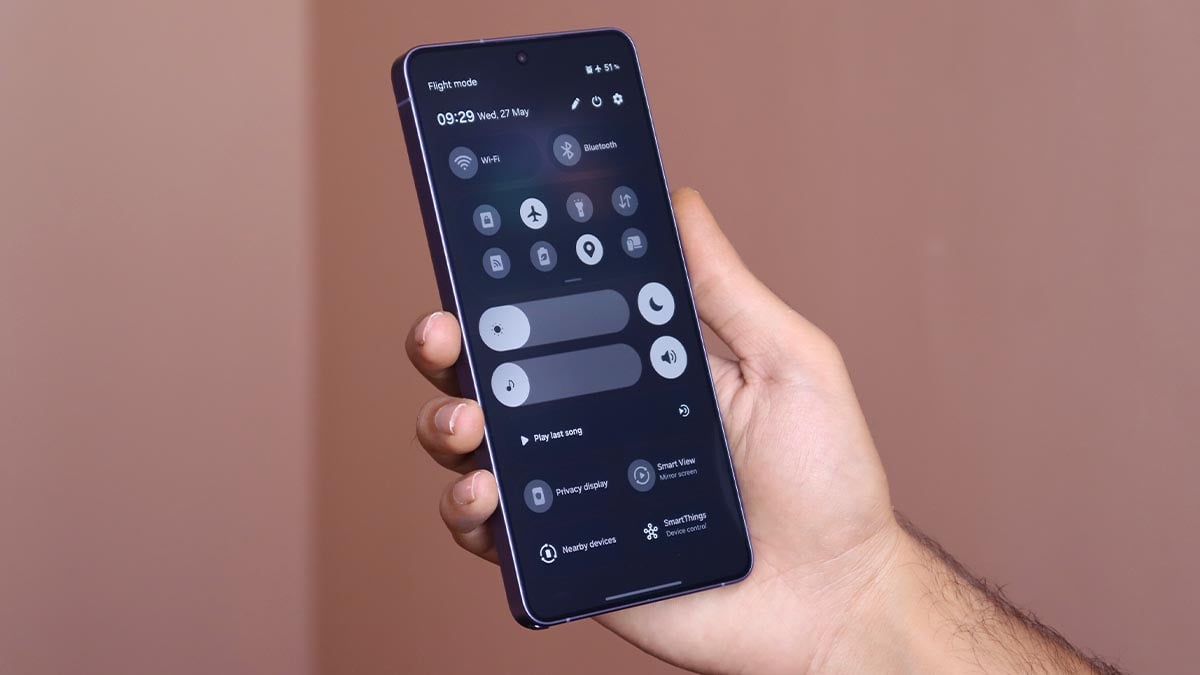
Samsung just dropped a One UI 9-compatible QuickStar update, which revives the Network Speed Indicator for Galaxy’s Status bar. That’s a massive upgrade for Galaxy smartphone users who have been waiting for years.
A network speed indicator in Status bar keeps users updated with the network quality. This allows users to monitor the surfing/download speed in real-time. This is not just a visibility upgrade, but a tool that’s helpful in everyday usage.
Samsung brings Network Speed Indicator
Network speed is disabled by default in the QuickStar app. You need to switch the toggle on to add a network speed monitor to the Status bar. Once enabled, it will appear along with other icons at the right side of the Status bar.
We tested the feature on your Galaxy S26 Ultra running One UI 9 Beta. The indicator shows speed for both WiFi and mobile data connections. Based on speed, the indicator should alter the unit across KB/s, MB/s, and GB/s.
You may like: One UI 9.0 Status bar icons are bigger, bolder, and clearer
The new feature has been reflected in the QuickStar app’s 11.0.03.15 version. The APK file of the app has been provided by X user Kailash (thanks!).

Your Samsung phone will also receive the feature to add a native Network Speed Indicator to the Status bar. The current requirement is One UI 9, based on Android 17, which is presently available in Beta for the Galaxy S26 series.
After the OS version, you will need to install Good Lock and its QuickStar plugin. A little bit of manual effort will let you optimize the Status bar. The newly added option in the “Indicator Icons” section is “Network speed.”

Samsung is officially bringing AI-powered Notification highlights to the Galaxy S25 series, namely Prioritise and Summarise features. The rollout has already started in Korea, and the AI tools will soon land on your Galaxy device.
Apple iPhone users are familiar with smart notification features. iOS has had similar features for a while now, which smartly handle notification overload. Samsung has brought two big AI features to the Galaxy S26 series at launch.
One UI 8.5 development version included AI-powered Prioritise and Summarise features for the Galaxy S25 series, which Samsung didn’t carry forward in the official version.
The Stable One UI 8.5 update, rolled out in May 2026, didn’t bring the two AI notification tools to the Galaxy S25 series. However, Samsung is now delivering those tricks to its 2025 flagships as part of the June 2026 firmware update.
Samsung AI can Prioritise and Summarise notifications
Samsung installed the “Notification highlights” section within Galaxy Settings, which carries these AI tools. The company says that these features are designed to categorise and summarise notifications to handle overload.
Prioritize Notifications
- Displays important notifications first to ensure you never miss what matters most.
- Only prioritizes notifications in your phone’s system language.
- Analyzes importance based on user information and notification content, with all data processed securely on the device.
Summarize Notifications
- Offers summaries of conversational notifications, saving you the effort of opening each one individually.
- Allows you to quickly understand essential details without sifting through extensive messages.
How to activate Notification highlights
Follow the steps below to activate Prioritise notifications and Summarise notifications:
- Step 1. Tap Settings
- Step 2. Select Notifications
- Step 3. Select Notification highlights

- Step 4. You can activate Prioritise notifications and/or Summarise notifications
- Step 5. Activate Prioritise notifications
- Step 6. Activate Summarise notifications

Pro tip: Samsung’s official landing page says that Galaxy users are allowed to enable or disable Prioritise notifications and Summarise notifications for each app individually in its settings.
Not all apps are compatible with Notification highlights
Samsung shared a long list of apps that work with Notification highlights. The list includes WhatsApp, Facebook Messenger, Google Messages, WhatsApp Business, Snapchat, Telegram, Samsung Messages, Zalo, Rakuten Viber Messenger, imo, Discord, MAX, KakaoTalk, WeChat, Signal, imo HD, Zangi, Plus Messenger, imo beta, aka, imo Lite, MiChat, Telegram X, Zello PTT Walkie Talkie, Messenger Kids, Graph Messenger, VK Messenger, Bip, GroupMe, Azar, Teams, TikTok, Facebook, Instagram, QQ, and Visual Voicemail.
-

 Updates30 minutes ago
Samsung gives two retired Galaxy S phones and a Note a fresh life, now in the US
-

 Updates15 minutes ago
Samsung Galaxy Watch 7, 8 and Ultra get new Wear OS update with security improvements [U: Live in USA]
-
 Updates2 days ago
Samsung releases June 2026 security enhancements for Galaxy S26, S25 (Edge/FE), Fold 7, Flip 7 and TriFold
-
 Phones1 day ago
Samsung Galaxy Z Flip 8, Fold 8 and Fold 8 Ultra clearing hurdles before launch