
Tips
Here’s how to safely clean Galaxy Buds 3 Pro and charging case


Keeping your Samsung Galaxy Buds 3 or Buds 3 Pro clean is important. It helps them sound better, charge properly, and last longer. Regular cleaning also helps avoid sound or charging issues. Here’s a simple and easy way to clean your Galaxy Buds 3 earbuds and case using items you might already have at home.
Before you start, gather the things you’ll need for cleaning. It includes a soft, dry cloth, cleansing water, paper towels, a soft brush, a small cup, distilled water, and cotton swabs. For cleaning, you just need to follow a few easy steps.
Cleaning Earbuds
To clean the earbuds, first dip a soft brush into cleansing water. Gently brush the microphone hole, speaker, and air duct for about 15 seconds. Be careful not to use sharp objects or press too hard, as this could damage the earbuds. Do not brush the sensor area to avoid scratches.
Next, wipe off the moisture with a paper towel and repeat the brushing and drying process three times. Then, rinse the brush with distilled water and gently brush the earbuds again. Wipe the sensor and blades with a soft, dry cloth.

If dirt sticks to the blades, the touch function might not work properly. Also, use a dry cloth to gently clean the charging terminals. Let the earbuds dry completely before using them again.
Charging Case
To clean the charging case, dip a cotton swab in distilled water. Gently wipe the charging terminals inside the case. Then, use a dry cotton swab to remove any moisture. Keep the case open and let it air dry completely. After it dries, check if the earbuds charge properly.
Notably, do not use alcohol, acetone, or any harsh chemicals to clean your earbuds or case. Make sure everything is dry before using or charging. You can check the full video here.


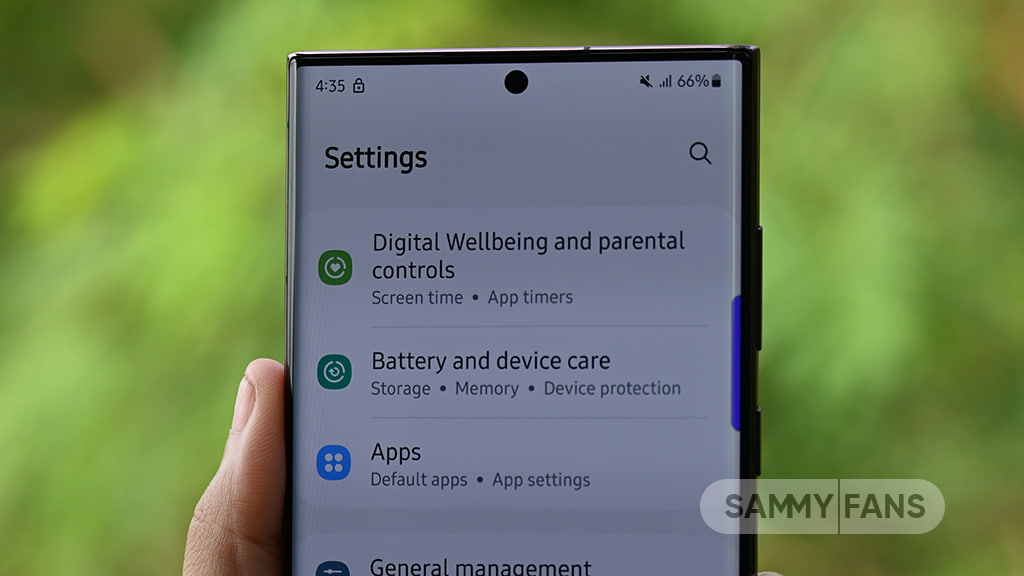
Samsung has added a new feature that helps stop annoying apps from sending too many advertising notifications. If an app keeps sending promotional alerts, Samsung can automatically block it from bothering you with the “Block apps with excessive ads” feature.
This new tool helps stop apps from sending too many ad notifications. The feature does not block ads inside apps. It only works with notifications and helps reduce unwanted notifications from apps that send too many ads.
When Samsung detects an app sending lots of advertising notifications, it can place that app into Deep Sleep. Apps in Deep Sleep cannot run in the background, which helps stop those annoying alerts.
Notably, it offers two blocking options:
Basic Blocking
This option is turned on by default. Samsung uses its own data to find apps that are known for sending too many ad notifications and blocks them automatically.
Intelligent Blocking
It gives extra protection. It checks notifications in real time and can find new apps that are sending too many ads. It then blocks those apps automatically.
How to enable this feature:
- Open the Settings app on your Samsung Galaxy phone.
- Scroll down and tap Device Care.
- Tap the three dots in the top-right corner.
- Select Settings.
- Tap Block apps with excessive ads.
- Check that Basic Blocking is turned on and turn on Intelligent Blocking for stronger protection.

Once the feature is enabled, your phone will watch for apps that send too many ad notifications and automatically reduce them.
Aside from this, you can also check which apps were blocked. For that, open Settings >> Device Care >> Care Report >> Excessive Alerts. You can see here the apps that Samsung has moved to Deep Sleep because they were sending too many promotional notifications.
This new feature is a simple way to keep your Galaxy phone cleaner and quieter. By turning it on, you can enjoy fewer annoying ads and a better smartphone experience.
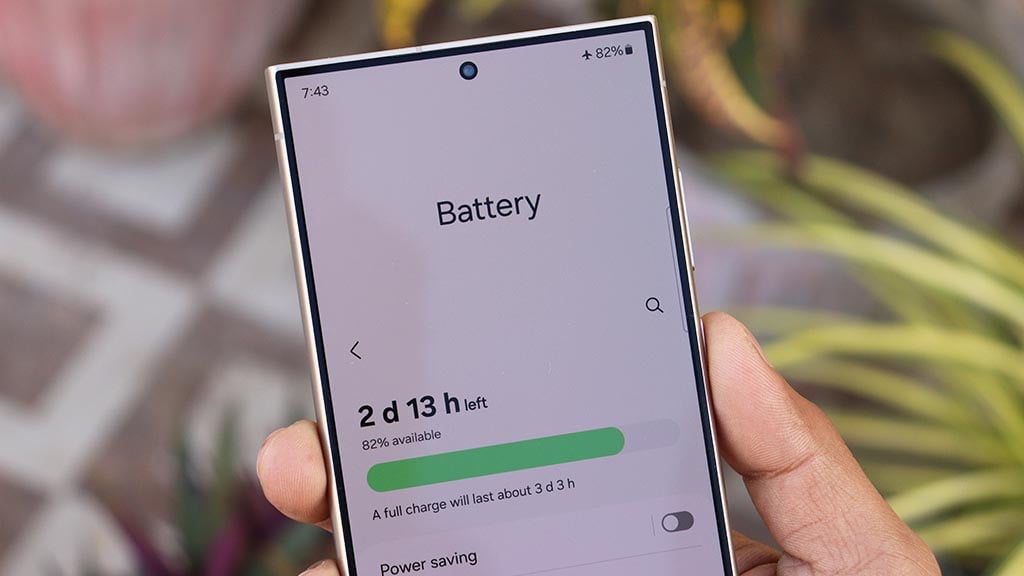
Many Samsung users see the “Battery Protection” feature and think they must use it. This feature limits charging to 80%, which aims to make the battery last longer. But the truth is, most people don’t really need it.
Nowadays, Samsung phones already have smart charging. When the battery reaches 100%, the phone automatically stops charging. This prevents overcharging and keeps your battery safe.
Using the 80% limit all the time means the Maximum Battery Protection feature has a minor downside. You don’t get the phone’s full battery power, which means it may run out faster during the day. You might end up charging it more often, which can be inconvenient.

Samsung batteries are designed to handle hundreds of full charging cycles. They are built to last for years if you use them normally. The main things that can harm the battery are extreme heat and letting it drain to 0% too often, not charging to 100%.
The “Max Battery Protection” option is optional. It can be helpful if you plan to keep your phone for many years and want to be extra careful. But for regular use, it’s not needed. Charging your phone to 100% occasionally is completely safe.
So, don’t worry too much about max battery protection as charging the battery to 100% isn’t anything wrong. Your Samsung phone already manages its battery well. Charge it in a way that suits your day, and enjoy your phone without stressing over charging percentage.

Samsung Galaxy Tab S11 has a special feature in Google Chrome that you won’t find on Google’s own Pixel tablets. This feature lets your open Chrome tabs show up when you search for things on your tablet’s home screen.
Usually, Samsung’s Internet works closely with the tablet’s search tool called Samsung Finder. When you search using Finder, it can show you websites you’ve visited. But Chrome didn’t have this feature until now.
On the Galaxy Tab S10 and S11, Chrome has a hidden setting that lets it share your open tabs and their website addresses with the tablet’s system. This means if you search for something in Samsung Finder, you might see your open Chrome tabs in the results. It makes finding stuff easier and faster.
To turn on this feature, you go to Chrome’s settings >> find “Tabs and tab groups” >> click on Advanced >> switch on “Share titles and URLs of open tabs from this device with the operating system.” This feature only works on certain Samsung tablets.

Image via Android Authority
Notably, it requires the device to be a tablet and to support “Auxiliary Search.” That’s why Google hasn’t made it available on the Pixel Tablet or other devices.
It’s not clear why Google and Samsung decided to keep this feature only for Samsung’s Galaxy Tab S10 and S11 tablets. Maybe it’s a way to give Samsung users a better experience since Samsung Internet already works so well with the system.
So, if you use a Galaxy Tab S11, you get an amazing Chrome trick that Pixel tablet users don’t have. It’s a handy way to keep track of your open tabs and find them quickly from your tablet’s search bar. Try it now!

Samsung Galaxy Z Flip 7 is more than just a stylish smartphone, as it’s a powerful tool to help you take amazing photos and videos anytime, anywhere. Here you can check 3 amazing Galaxy Z Flip 7 features.
Whether you’re clicking a quick selfie, recording fun moments with friends, or creating content for social media, the Galaxy Z Flip 7 makes it easy and enjoyable. With features like FlexWindow, FlexCam, and real-time filters, creating great content is easier than ever.
3 Must-Try Camera Features on Galaxy Z Flip 7
1.) FlexWindow: Snap Selfies Without Opening the Phone
The 4.1-inch FlexWindow on the cover of the Galaxy Z Flip 7 lets you take quick selfies without even opening the main screen. Just open the camera from the cover, choose your favorite filter, and take your shot. This is perfect when you want to snap a photo without unlocking your phone.
2.) Try Fun Angles with FlexCam
With FlexCam, you can fold the phone and place it on a flat surface like a table or shelf. This allows you to take photos or videos from different angles without needing a tripod. Just fold, place, and shoot! You can even preview everything in real time and adjust before taking the picture.

3.)Real-Time Filter with Google Gemini suggestion
The Galaxy Z Flip 7 lets you apply real-time filters before you take a photo. You’ll see exactly how the photo will look before you click the button.
Also, the built-in Google Gemini AI can help. Just ask things like, “Suggest a selfie filter for a sunny day” or “What’s a fun pose for a rooftop photo?” It gives you filter and pose suggestions so your photos always feel new and personal.
The Galaxy Z Flip7 is made to help you express yourself easily and confidently. You don’t need extra apps or editing skills. Just open your phone, get creative, and share your favorite moments in your own style.

If you’re ready to take your health to the next level, it’s time to focus on your diet and nutrition. Samsung Galaxy Watch 8 makes it easier than ever to build healthy eating habits that support slow aging and long-term wellness.
Samsung Galaxy Watch 8 is the first smartwatch that can measure your antioxidant levels, which are important nutrients that protect your cells and help keep your body young. With just a simple press of your thumb on the back sensor, the watch checks your antioxidant status in real time and shows how your lifestyle choices affect your body.
Here’s how smarter eating habits with Galaxy Watch 8
Check Your Antioxidant Levels
Antioxidants are found in fruits and vegetables and help protect your body from damage. The Galaxy Watch 8 checks for carotenoids, which are natural antioxidants in foods like carrots, broccoli, and oranges.
Just place your thumb on the back sensor, and in five seconds, you’ll see your Antioxidant Index score out of 100. A low score means you should add more colorful fruits and vegetables to your meals.
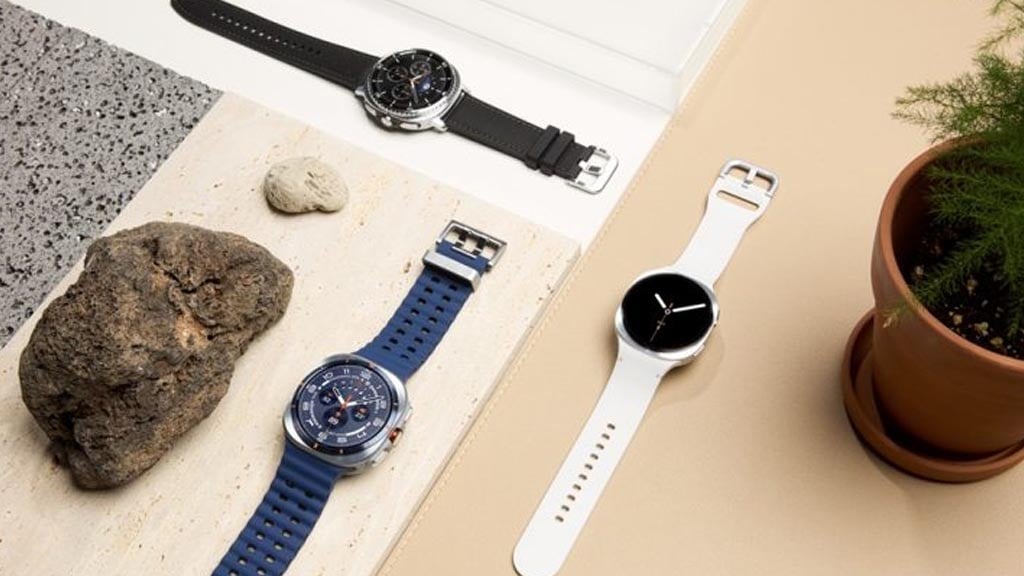
See How Your Habits Affect You
The Galaxy Watch 8 also gives you an Energy Score. This shows how things like drinking alcohol or eating late at night affect your body. When you see how these habits lower your health scores, it’s easier to make better choices.
Drink Enough Water
Staying hydrated is very important. The Samsung Health app helps you set a daily water goal. You can tap to log each glass of water you drink, and the watch will remind you to stay on track.
The Galaxy Watch 8 makes it easy to build healthy eating and lifestyle habits. By tracking your diet, water intake, and daily choices, you can take simple steps toward aging better and feeling great every day.
-
 Phones20 hours ago
Trusted source leaks Galaxy Z Fold 8 Wide colors, specifications
-
 One UI3 days ago
One UI 9.0 improves accessibility with 6 new features
-
 News3 days ago
Samsung Galaxy S27 lineup kicks off launch preparations
-
 News15 hours ago
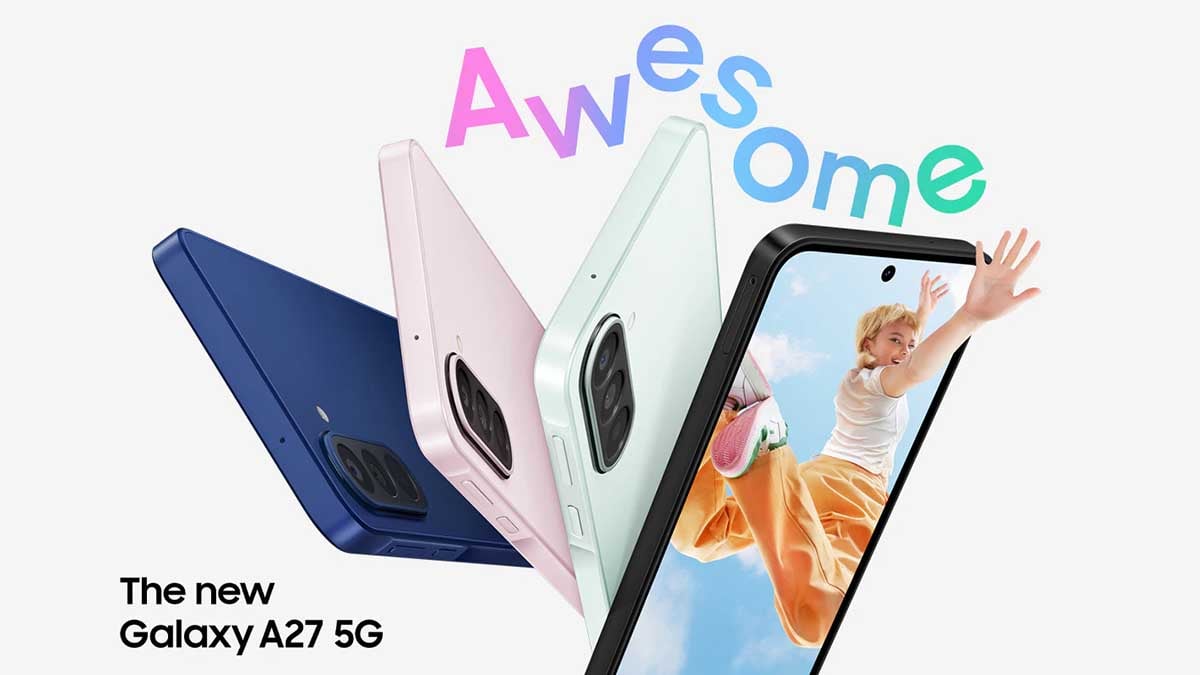
Samsung Galaxy A27 5G launched in the US for $350 [U: India too]