
Good Lock
2 Popular Samsung Good Lock modules get new features and fixes!


Samsung has released new updates for two Good Lock modules on the Galaxy Store. The latest updates are now available for Wonderland and One Hand Operation.
Both updates bring some useful improvements, bug fixes, and better app performance for Galaxy users. The new versions are Wonderland v1.6.28 and One Hand Operation v9.4.23.0.
Samsung’s Wonderland module has received several improvements with the latest update. Samsung has improved the wallpaper editor preview, making it easier for users to see their changes while creating wallpapers.
The update also adds support for landscape lock screens. Another new feature allows users to restore layers that are placed outside the screen. This can help users while editing and managing different wallpaper elements.

Image via SammyFans
Apart from these changes, Samsung has also fixed some problems with video wallpapers. The company has improved the saving speed, so users can save their work faster. The update also brings better stability for a smoother experience.
Meanwhile, the One Hand Operation module has also received a new update. The latest version 9.4.23.0 fixes an issue with the Home button’s long-press function in landscape mode. Samsung has also fixed other bugs and made improvements to the app’s stability. These changes aim to provide a better experience when using the module.
Galaxy users can download both updates through the Samsung Galaxy Store. To get the latest versions, simply open the Galaxy Store, search for Wonderland or One Hand Operation, and check for updates. If you have received the update, download it now.



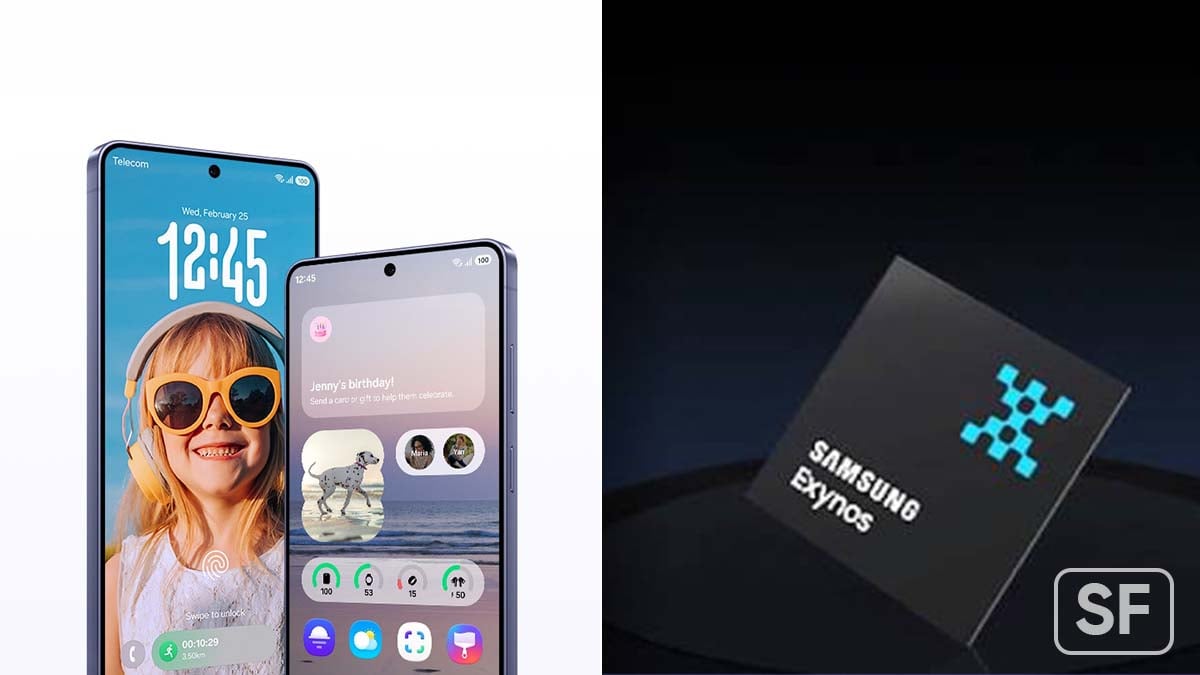


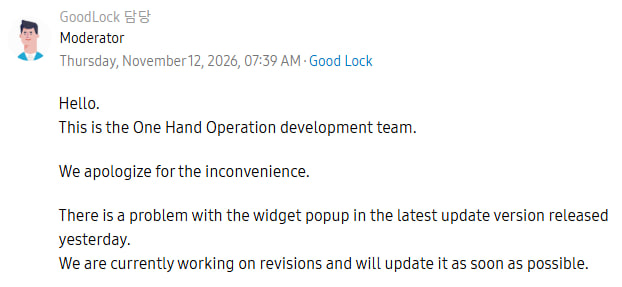
Samsung has acknowledged a display scaling bug affecting widget pop-ups in its Good Lock UI customization tool, One Hand Operation+, following widespread complaints from Galaxy users this week.
According to official community feedback, Samsung’s development team is already preparing a software patch to resolve the issue, which drastically shrinks the floating container used for quick-access widgets.
The regression first surfaced after Samsung pushed version 9.4.21.0 earlier this week, an update primarily intended to fix a landscape-mode Home button long-press flaw alongside routine stability improvements.
Users quickly noticed that triggering a widget pop-up via edge-swipe gestures now spawns a noticeably narrower window than before. The container compresses, cramping third-party and native widgets alike.
Affected users point to a layout conflict between One UI’s main launcher grid and the module’s internal rendering engine. While many Galaxy owners configure their primary home screens on a 5×7 grid, One Hand Operation+ restricts its widget pop-ups to a four-column horizontal layout.
In the current build, the module appears to miscalculate padding and column width when bridging those two different grid densities. Even the subsequent 9.4.23.0 build fails to resolve the erratic resizing.
For power users relying on Good Lock to navigate large-screen flagships one-handed, broken pop-ups undermine a core productivity shortcut.
A Samsung community moderator has officially confirmed (via SammyGuru) the bug and noted that a fix will roll out soon, likely arriving as a minor point release on the Galaxy Store within days.

Samsung users facing a lock screen clock bug in One UI 9.0 may finally get some good news. A Samsung Community Moderator has shared an update about the issue and confirmed that improvements are planned for November through an Always On Display app update.
Some users are facing a problem when applying a ClockFace clock to their lock screen in One UI 9.0. After applying the clock style, its position changes automatically instead of staying in the selected position.
This makes it difficult for users to customise their lock screens as they want. Several users have reported this problem and are waiting for Samsung to provide a proper fix. Users are now asking Samsung when the problem will finally be solved.
Responding to the complaints, a Samsung Community Moderator has shared some good news. The issue where the clock position changes after applying a ClockFace clock to the lock screen is scheduled to be improved through an AOD app update in November.

The moderator also advised users to update their devices to the latest software to make sure the improvements are available.
However, Samsung has not provided an exact release date for the update. The moderator also clarified that the software release schedule may change depending on different circumstances. This means users may have to wait until the update becomes available.
For now, affected users should keep their AOD app and device software updated. Hopefully, the November update will finally solve this annoying One UI 9.0 lock screen clock issue.
Samsung Galaxy users are reporting an issue after installing the One UI 9.0 update. The media icon does not appear when they press the volume buttons to adjust the sound. This issue has been noticed on devices like the Galaxy Tab S11 and Galaxy S25 Ultra.
A Galaxy Tab S11 user reported this problem after updating their device and asked whether it was normal or a software bug. The Galaxy S25 Ultra also seems to have the same issue.
In response, a moderator from the Good Lock Support Team explained how the Sound Assistant feature works. According to the moderator, the volume display feature in Sound Assistant works only for media volume. This means it is designed to show the volume display when users adjust media sound.
However, it does not apply to other volume types, such as ringtone or notification volume. This clarification helps explain how the feature works, but it does not confirm whether the missing media icon is a bug in One UI 9.0.
For now, users can check their Sound Assistant settings and make sure they are adjusting media volume. If the issue continues, they can report it through the Samsung Members app.
Samsung has not yet provided a clear explanation of whether this behaviour is intentional or needs to be fixed. Galaxy Tab S11 and Galaxy S25 Ultra users may have to wait for further clarification or a future software update.
Samsung Good Lock‘s Nice Catch feature helps users check their blocked app notification history. However, some users have reported that notifications automatically disappear after three days. They want to know if there is a way to increase this time limit.
A user reported that an alarm notification received on October 29 at 20:30 disappears from the history on November 1 at 20:30. This happens because of the time limit set by the app that sends the notification.
The issue is that some users do not check their notifications every day. They prefer to collect notifications for a few days and read or manage them all at once. Because of the three-day limit, they may lose notifications before getting a chance to check them.

In response to this concern, a community moderator from the Good Lock Support Team explained that Nice Catch allows users to check the history of blocked notifications. However, there is currently no option to change or extend the notification retention period.
The moderator also explained that how long a notification stays available depends on the app that sends it. Users need to check with the respective app for more details about its notification settings.
It would be helpful if Samsung added an option to keep notifications for 7, 15 or 30 days. This would allow users to manage their notification history according to their needs. Hopefully, Samsung will consider adding this option in a future Good Lock update.
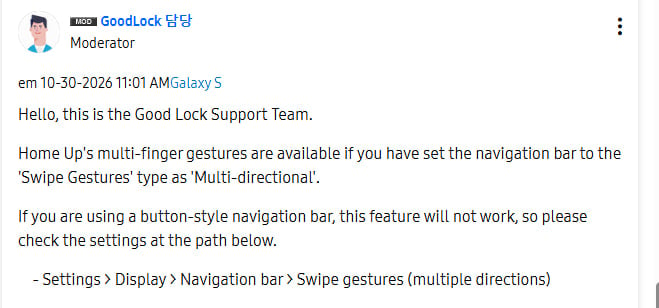
Are you facing problems with multi-finger gestures in Samsung Good Lock‘s Home Up module? Some users have reported that two-finger and three-finger gestures are not working, even after changing the swipe distance from short to long. They have also tried different settings, but nothing seems to fix the problem.
According to the Good Lock Support Team, the problem could be related to the phone’s navigation bar settings. Home Up’s multi-finger gestures work only when you use Swipe Gestures. If your phone is using the traditional three-button navigation system, this feature will not work.
To fix this, open Settings on your Samsung phone, go to Display, then Navigation bar. Now, select Swipe gestures and choose Multiple directions. After changing this setting, go back to Home Up and try using the multi-finger gestures again.
Many users may also wonder if they need to turn off any other features to make these gestures work. According to the support team, there is no need to disable any additional features. You just need to make sure that your phone is using the correct navigation style.
So, if Home Up’s multi-finger gestures are not working, don’t keep changing the number of fingers or swipe distance. First, check your navigation bar settings. Switching to Swipe Gestures (Multiple Directions) may solve the problem and help you use multi-finger gestures again.
-
 One UI6 hours ago
One UI 9.0 official update now rolling out to these Samsung phones
-

 One UI2 days ago
Fresh One UI 9.5 leaks reveal AI Rambler, Telegram and WhatsApp call recording, new widgets and UI tweaks
-
 AI2 days ago
Gmail gets new Gemini AI tools for writing and email summaries
-
 Updates1 day ago
Flagship Galaxy S26 lineup now getting November 2026 update globally