
Good Lock
Samsung explains missing media volume icon in One UI 9.0


Samsung Galaxy users are reporting an issue after installing the One UI 9.0 update. The media icon does not appear when they press the volume buttons to adjust the sound. This issue has been noticed on devices like the Galaxy Tab S11 and Galaxy S25 Ultra.
A Galaxy Tab S11 user reported this problem after updating their device and asked whether it was normal or a software bug. The Galaxy S25 Ultra also seems to have the same issue.
In response, a moderator from the Good Lock Support Team explained how the Sound Assistant feature works. According to the moderator, the volume display feature in Sound Assistant works only for media volume. This means it is designed to show the volume display when users adjust media sound.
However, it does not apply to other volume types, such as ringtone or notification volume. This clarification helps explain how the feature works, but it does not confirm whether the missing media icon is a bug in One UI 9.0.
For now, users can check their Sound Assistant settings and make sure they are adjusting media volume. If the issue continues, they can report it through the Samsung Members app.
Samsung has not yet provided a clear explanation of whether this behaviour is intentional or needs to be fixed. Galaxy Tab S11 and Galaxy S25 Ultra users may have to wait for further clarification or a future software update.


Samsung users facing a lock screen clock bug in One UI 9.0 may finally get some good news. A Samsung Community Moderator has shared an update about the issue and confirmed that improvements are planned for November through an Always On Display app update.
Some users are facing a problem when applying a ClockFace clock to their lock screen in One UI 9.0. After applying the clock style, its position changes automatically instead of staying in the selected position.
This makes it difficult for users to customise their lock screens as they want. Several users have reported this problem and are waiting for Samsung to provide a proper fix. Users are now asking Samsung when the problem will finally be solved.
Responding to the complaints, a Samsung Community Moderator has shared some good news. The issue where the clock position changes after applying a ClockFace clock to the lock screen is scheduled to be improved through an AOD app update in November.

The moderator also advised users to update their devices to the latest software to make sure the improvements are available.
However, Samsung has not provided an exact release date for the update. The moderator also clarified that the software release schedule may change depending on different circumstances. This means users may have to wait until the update becomes available.
For now, affected users should keep their AOD app and device software updated. Hopefully, the November update will finally solve this annoying One UI 9.0 lock screen clock issue.
Samsung Good Lock‘s Nice Catch feature helps users check their blocked app notification history. However, some users have reported that notifications automatically disappear after three days. They want to know if there is a way to increase this time limit.
A user reported that an alarm notification received on October 29 at 20:30 disappears from the history on November 1 at 20:30. This happens because of the time limit set by the app that sends the notification.
The issue is that some users do not check their notifications every day. They prefer to collect notifications for a few days and read or manage them all at once. Because of the three-day limit, they may lose notifications before getting a chance to check them.

In response to this concern, a community moderator from the Good Lock Support Team explained that Nice Catch allows users to check the history of blocked notifications. However, there is currently no option to change or extend the notification retention period.
The moderator also explained that how long a notification stays available depends on the app that sends it. Users need to check with the respective app for more details about its notification settings.
It would be helpful if Samsung added an option to keep notifications for 7, 15 or 30 days. This would allow users to manage their notification history according to their needs. Hopefully, Samsung will consider adding this option in a future Good Lock update.

Are you facing problems with multi-finger gestures in Samsung Good Lock‘s Home Up module? Some users have reported that two-finger and three-finger gestures are not working, even after changing the swipe distance from short to long. They have also tried different settings, but nothing seems to fix the problem.
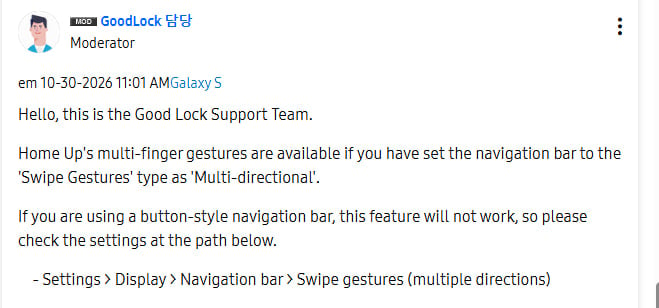
According to the Good Lock Support Team, the problem could be related to the phone’s navigation bar settings. Home Up’s multi-finger gestures work only when you use Swipe Gestures. If your phone is using the traditional three-button navigation system, this feature will not work.
To fix this, open Settings on your Samsung phone, go to Display, then Navigation bar. Now, select Swipe gestures and choose Multiple directions. After changing this setting, go back to Home Up and try using the multi-finger gestures again.
Many users may also wonder if they need to turn off any other features to make these gestures work. According to the support team, there is no need to disable any additional features. You just need to make sure that your phone is using the correct navigation style.
So, if Home Up’s multi-finger gestures are not working, don’t keep changing the number of fingers or swipe distance. First, check your navigation bar settings. Switching to Swipe Gestures (Multiple Directions) may solve the problem and help you use multi-finger gestures again.
Some Samsung users are facing a problem with the flashlight shortcut in the LockStar app. The flashlight option is missing from the list of shortcuts, so users cannot add it to their lock screen. Some users with the same Galaxy device model can see the option, while others cannot.
A Samsung Community moderator has confirmed that this is a known issue. Samsung has also said that the problem will be improved in the next version of LockStar. Until then, users can try a simple workaround to bring back the missing flashlight option.
First, open Settings on your Samsung phone and go to Wallpaper and style. Tap Change wallpapers and scroll down to find Wallpaper services. Select Dynamic Lock Screen, choose any category, and then cancel the selection.
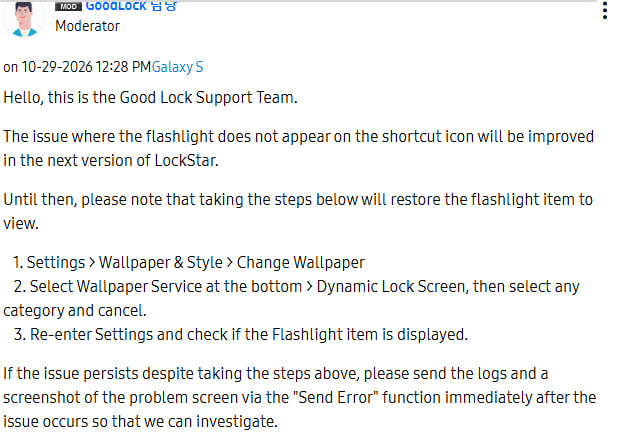
After completing these steps, return to Settings and check whether the flashlight option is visible in LockStar. This method may help restore the missing shortcut.
If the flashlight option is still missing, Samsung recommends sending an error report. Use the Send Error function immediately after the problem occurs. Make sure to include the system logs and a screenshot of the screen where the flashlight option is missing. This will help Samsung investigate the issue.
For now, users can try this workaround while waiting for the next LockStar update. Samsung has acknowledged the problem, and a future update is expected to improve the experience.


Samsung Home Up is getting updated on Galaxy devices running One UI 9.0 official version, with the latest version 18.0.00.38 carrying patches for home screen DIY layout and stack widget issues.
Home Up is a powerful home screen customization app. It is available through Good Lock on select premium and mid-range devices. This plugin is crafted to significantly elevate the Galaxy personalization capabilities.
With the One UI 9.0 update, Samsung upgraded Home Up. The plugin has added new features for an even better customization experience. Existing features, such as animation and gesture tuning, have also been improved.
Thanks to the version 18.0.00.38 update, Home Up is tackling home screen issues linked to the One UI 9 home screen on Samsung devices. Release notes mention two major enhancements tied to key user interface aspects:
- DIY home screen
- Stack widget
DIY home screen: Fixed an error where the layout was changing on the DIY home screen
Stack widget: Fixed an error where the Stack widget was displayed abnormally on the DIY home screen
If you use Home Up for home screen personalization, grab the latest version on Galaxy Store. Samsung also advises Galaxy owners to always prefer the latest version for optimal user experience.

-

 One UI2 hours ago
Official One UI 9 Watch update now live in the US for Galaxy Watch 8 and Classic
-
Good Lock3 days ago
Samsung to fix One UI 9.0 lock screen clock bug with November AOD update
-
 One UI3 days ago
Samsung might not make Galaxy users wait until December for One UI 9.5!
-

 Semiconductor2 days ago
TSMC rules out memory market entry, reaffirms focus on logic chip foundry