News
Samsung One UI 4.0 Camera Super Slow-Mo Mode

Samsung has introduced a number of new features, including an improved stock Camera app with its One UI 4.0 update. While everyone these days wants powerful image capture capabilities on their smartphone, the Android 12 update brings an improved version of the Camera application.
By upgrading your eligible Samsung Galaxy phone to Android 12-based One UI 4.0, you can access the newest Camera app to quickly capture high-quality pictures and videos. Additionally, one of the impressive and cool features that Galaxy fans love so much is Super Slow-mo mode.
One UI 4.0 Super Slow-Mo Mode on your Galaxy device allows you to record video in slow motion, making all your favorite moments cinematic. Whether you’re going for a slam dunk on a basketball court or your kids running through sprinklers, you can slow down and restore memory with Super Slow-Mo mode.
One UI 4.0 Super Slow-Mo Mode


What is Super Slow-Mo?
Thanks to your phone’s advanced motion sensor, Super Slow-Mo allows you to shoot at an incredible 960 frames per second. While capturing .2 or 4-second increments in super slow-mo slow motion on the Galaxy S9 and below, the S10 and later can capture twice as much .4 or .8 seconds.
Note: Super Slo-mo supports only HD resolution. Each video is limited to 20 shots.
Super Slow-Mo (Auto)
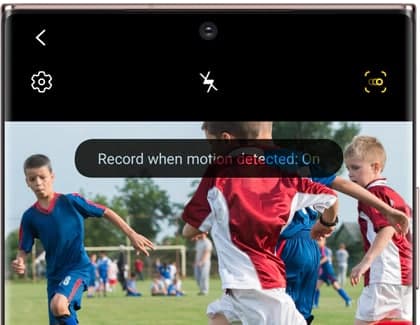
If you want the best slow-motion possible, use Super Slow-Mo Auto Mode. In this mode, the camera automatically detects the motion and then slows it down. It allows you to add slow-motion moments more than once per video.
- From the Camera app, tap More, and then select Super Slow-Mo.
- Then, tap on the Motion Detection icon to confirm that Auto Mode is turned on.
- It looks like three small circles inside a square. When you are ready, press Record.
- Hold your phone steady to enable motion detection. When your camera detects motion in the class, it automatically starts recording Super Slow-mo.

Super Slow-Mo (Manual)
The manual Super Slow-mo version allows you to manually activate slow motion. When you use this feature, each video has a slow-motion effect.
- From the Camera app, tap More, and then select Super Slow-Mo.
- Then, make sure the Auto mode is turned off. When it is off, the motion identifier turns gray.
- When you are ready, press Record. Hold your phone still and capture the action.
- Your phone will stop recording after a few seconds and will automatically create a slow-motion video.

Super Slow-Mo Tips
Although Super Slow-Mo is Super Advanced, there are a few things you need to keep in mind when shooting a slow-motion video. See the following tips for getting the best results with Super Slo-Mo:
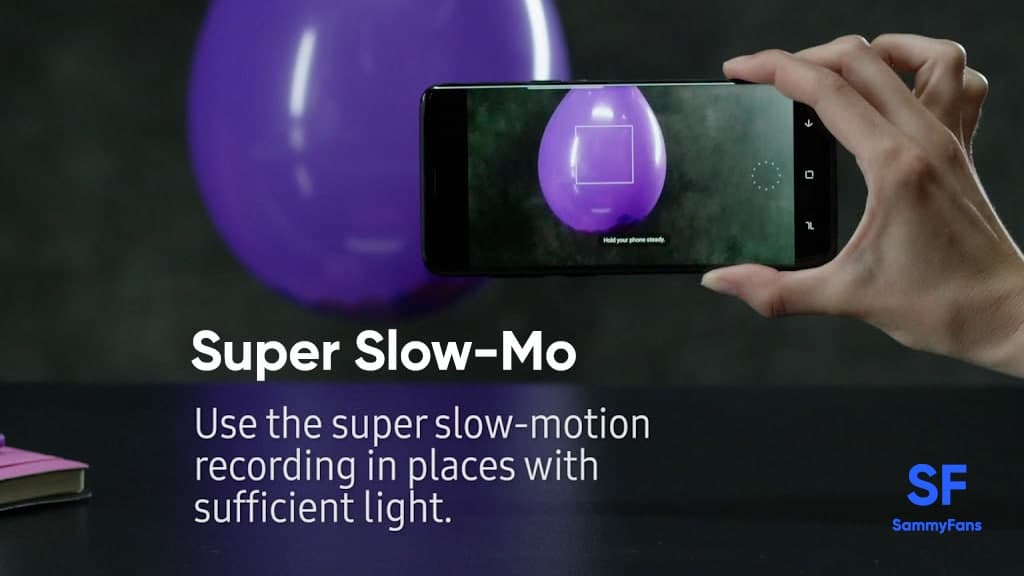
- Make sure there are no moving objects in the on-screen square as this will trigger super slow-mo recording in auto mode.
- Avoid recording in flickering or fluorescent lighting, as this will trigger super slow-mo recording in auto mode.
- Record in an area of sufficient brightness. We recommend recording under LED lighting or sunlight.
Get notified –
Aside from SammyFans’ official Twitter and Facebook page, you can also join our Telegram channel, follow us on Instagram and subscribe to our YouTube channel to get notified of every latest development in Samsung and One UI ecosystem. Also, you can follow us on Google News for regular updates.