
Tips
One UI 4.0 Tip: How to use Screen recorder in Samsung phones?

In a recent development, Samsung has just released the first hotfix update based on the third One UI 4 beta build, which brings fixes for several bugs and issues that have been degrading performance after installing Beta 3 on the Galaxy S21.
With One UI 4, users get a wealth of theme options to adjust the look and functionality of their devices, giving them tools to configure their home screens, icons, notifications, wallpapers, and more.
In addition to this, the Quick Panel on One UI 4 has been redesigned with more compact notifications and an enhanced layout. Silent notifications and alarm notifications are also separated so that you can easily categorize information when it arrives.
The panel still retains Samsung’s design language instead of the UI seen in Google’s Android 12 update for Pixel phones. However, here, in this article, we are talking about screen recording in One UI 4.
What is Screen Recorder?
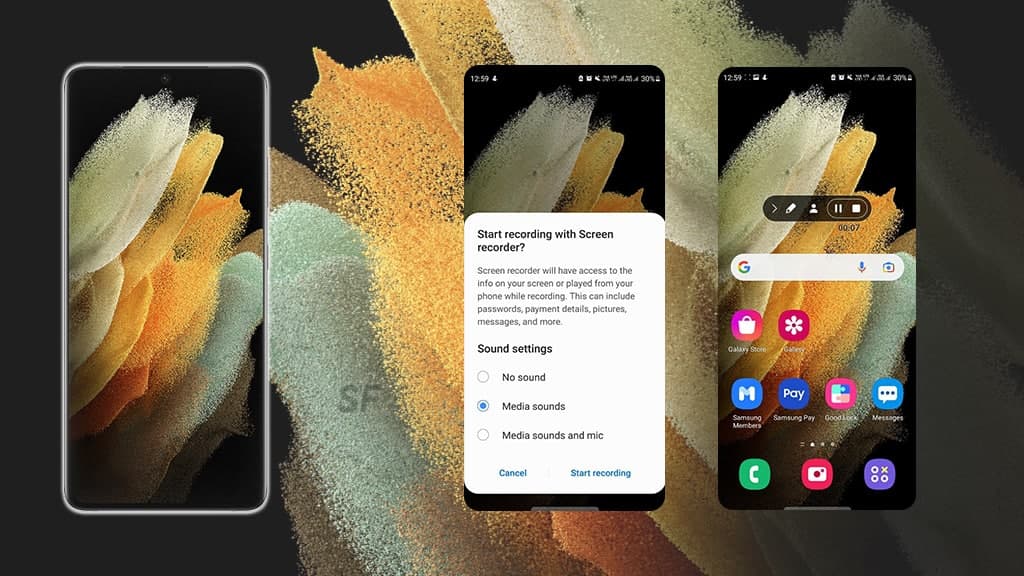
Screen Recorder is a new feature that allows you to easily make screen recording videos without downloading any external applications. You can start screen recording by clicking the icon in the quick panel. After a countdown of 3 seconds, your recording will start.

How to use it?
Record activities on your device, write notes, and use the camera to record a video overlay of yourself to share with friends or family.
- Go to Quick Settings
- Tap Screen recorder
- Start recording.
- A three-second countdown runs before it starts recording. You can tap Skip
countdown to begin recording immediately.
- Tap Draw to draw on the screen.
- Tap Pointer to show an icon on the screen when using your S Pen (GalaxyS21 Ultra 5G only).
- Tap Selfie video to include a recording from your front camera.
- Tap Stop to finish recording. These are automatically saved to the Screen
recordings album in the Gallery.
Screen recorder settings
Control the sound and quality settings for the screen recorder.
- Go to Settings
- Tap Advanced features
- Then, click on Screenshots and screen recorder.
- Sound: Choose what sounds to record while using the screen recorder.
- Video quality: Select a resolution. Selecting a higher resolution for higher quality requires more memory.
- Selfie video size: Drag the slider to set the size of the video overlay
Aside from SammyFans’ official Twitter and Facebook page, you can also join our Telegram channel and subscribe to our YouTube channel to get notified of every latest development in Samsung and One UI ecosystem. Also, you can follow us on Google News for regular updates.


Samsung has started rolling out One UI 9.0 update and Galaxy users should look at optimizing their phone’s power settings to extend battery life.
Android 17-based One UI 9.0 update brings a refined interface and smoother animations, but learning how to manage the system’s power consumption is the key to getting through a heavy day without reaching for a charger.
Whether you want to stretch your daily screen-on time or protect the physical health of the battery over the next few years, the new settings menu has you covered.
Here are the top three battery settings you need to tweak right after updating to One UI 9.0:
1. Configure the New Battery Protection Modes
One UI 9 gives you much more granular control over your phone’s long-term battery health. Instead of a simple on/off toggle that limits charging to 85%, Samsung now offers three distinct tiers to prevent battery degradation over time.
Where to find it: Go to Settings > Battery > Battery protection
Choose between Basic (stops at 100% and waits until it drops to 95% to resume), Adaptive (pauses at 80% while you sleep and finishes charging right before you wake up), or Maximum (hard caps the charge at 80%).
Samsung Battery Protection (Source – Sammyfans)
2. Switch to the “Light” Performance Profile
Standard Power Saving mode is great for emergencies, but it disables your 120Hz refresh rate and limits background data. If you want to save battery without making your phone feel sluggish, the Light Performance Profile should be your pick.
Where to find it: Go to Settings > Device Care > Performance profile | Switch the profile from Standard to Light

3. Aggressively manage background usage limits
One UI 9 is excellent at managing background power usage, but manually moving unused apps into “Deep Sleep” guarantees they won’t sip power when you aren’t looking.
Where to find it: Go to Settings > Battery > Background usage limits
Tap on Deep sleeping apps, hit the + icon, and add any apps that you rarely use or don’t need real-time notifications from (like airline apps, fast food apps, or older games).
Keep visiting SammyFans for such tips!


Samsung’s One UI 9 introduces a simple way to make Galaxy phone screens more dynamic with Motion Photo wallpapers. The feature lets users turn compatible Motion Photos from Samsung Gallery into moving wallpapers for the lock screen and/or home screen.
Here’s how to use the new feature on supported Galaxy devices. Just need to follow a few easy steps.
- Start by opening the Samsung Gallery app on your Galaxy smartphone. Browse through your photos and select an image that was captured with Motion Photo enabled. Only compatible Motion Photos will show the new wallpaper option.
- Open the Motion Photo you want to use. Make sure it contains the motion captured when the picture was taken. You can use your preferred Motion Photo rather than having to capture a new image.
- From the selected image, choose the option to set the picture as your wallpaper. Samsung will take you to the wallpaper customization screen, where additional options are available.
- On the wallpaper setup screen, look for the “Motion photo” option. Turn it on to use the image as an animated wallpaper. If you prefer a normal static wallpaper, you can leave the option disabled.
- Choose where you want to use the Motion Photo wallpaper and apply the changes. It’s done

The feature is currently available on Samsung’s latest foldables, including the Galaxy Z Flip 8, Galaxy Z Fold 8, and Galaxy Z Fold 8 Ultra, running official One UI 9 software. It is reportedly missing from the Galaxy S26 beta for now, but Samsung is expected to expand the feature with the wider One UI 9 rollout.


Samsung Good Lock unlocks many possibilities to customize the One UI software experience, but there’s an in-built feature that could help you remove the swipe gestures and enable a tap button instead.
Swipe gestures are part of the Android ecosystem, it helps users navigate through the system. You can swipe up or down to scroll through the content, gallery, menu, or any of the large screen space. These gestures expand beyond scrolling, such as answering or denying a call.
However, Samsung also gives an option for its phone users to switch off gestures for certain features. I’ve been using tap only for quite some time, and here’s my experience with it.
It makes a lot of difference when answering a phone call. You just need to tap on the answer button, and that’s it. Sometimes, my fingers get greasy, which fails to register a swipe across the display to pick up calls. This shortcut made it a lot easier.
Gestures are a nice way to interact with the phone, and I use them all of the time, especially the back gestures. However, it may not suit every situation. Most One UI versions support replacing swipe gestures with the tap button for calls, alerts, and alarms. Here’s how you can activate it.
- Open Settings
- Search “Replace swipe with single tap”
- Tap on the slider to activate
Alternatively, go to Settings > scroll down and enter Accessibility > Interaction and dexterity > Replace swipe with a single tap > tap on the toggle to activate.

Samsung has mainstreamed this feature in the One UI 9.0 settings, while previous versions required an extra tap on the screen.

Samsung Messages app has been discontinued in the US, and Google Messages is the officially preferred switch. Google Messages offers all the great features you need for everyday messaging, along with support for Rich Communication Services (RCS). Still, if you want to rely on the Samsung Messages app, there’s a workaround that keeps it alive for now.
Back in April 2026, Samsung announced that its native Messages app would be discontinued. The app started to notify users in early July, with the deployment happening on July 6, disconnecting the app from the connection.
Samsung recommends Galaxy users get Google Messages from the Play Store and make it the default messaging app. Once done, you will retain all your chats in Google’s app and continue further messaging through it.
Notably, Samsung has started shipping recent flagships without the Samsung Messages app in the US. It includes the Galaxy S25 series and Galaxy S26 series, as well as the Z Fold 6, Z Flip 6, Z Fold 7, and Z Flip 7 foldable phones.
Well, it’s not impossible to keep Samsung Messages alive; here’s how:
Samsung Messages app is just disconnected, not banned or revoked. Users can get the app working again on their Galaxy device despite the official discontinuation. However, you will have to use its factory version, which it was shipped with.
Open your phone Settings > Apps > Messages > More Options (three dots) and tap Uninstall Updates.
Once done, open the Galaxy Store > Menu > Updates > Samsung Messages, and uncheck Enable auto-update.
These tweaks will roll back updates you’ve installed over the past time. Unchecking “auto-update” will ensure the Galaxy Store or Play Store won’t trigger an automatic update and stop the functionality of the app again.
The workaround is working as of July 2026, but no guarantee for the future. Also, we recommend that users comply with the official guidelines.
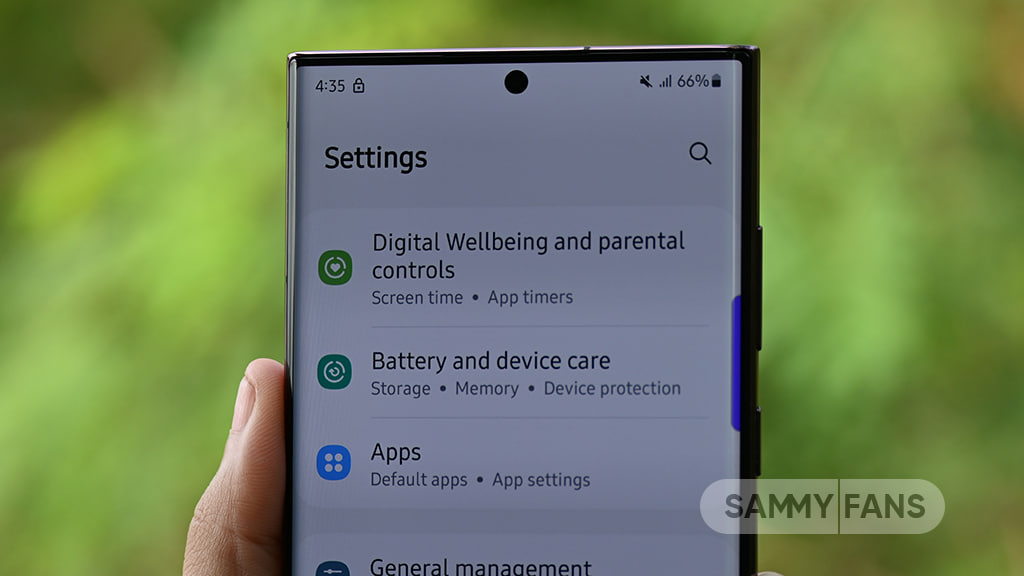
Samsung has added a new feature that helps stop annoying apps from sending too many advertising notifications. If an app keeps sending promotional alerts, Samsung can automatically block it from bothering you with the “Block apps with excessive ads” feature.
This new tool helps stop apps from sending too many ad notifications. The feature does not block ads inside apps. It only works with notifications and helps reduce unwanted notifications from apps that send too many ads.
When Samsung detects an app sending lots of advertising notifications, it can place that app into Deep Sleep. Apps in Deep Sleep cannot run in the background, which helps stop those annoying alerts.
Notably, it offers two blocking options:
Basic Blocking
This option is turned on by default. Samsung uses its own data to find apps that are known for sending too many ad notifications and blocks them automatically.
Intelligent Blocking
It gives extra protection. It checks notifications in real time and can find new apps that are sending too many ads. It then blocks those apps automatically.
How to enable this feature:
- Open the Settings app on your Samsung Galaxy phone.
- Scroll down and tap Device Care.
- Tap the three dots in the top-right corner.
- Select Settings.
- Tap Block apps with excessive ads.
- Check that Basic Blocking is turned on and turn on Intelligent Blocking for stronger protection.

Once the feature is enabled, your phone will watch for apps that send too many ad notifications and automatically reduce them.
Aside from this, you can also check which apps were blocked. For that, open Settings >> Device Care >> Care Report >> Excessive Alerts. You can see here the apps that Samsung has moved to Deep Sleep because they were sending too many promotional notifications.
This new feature is a simple way to keep your Galaxy phone cleaner and quieter. By turning it on, you can enjoy fewer annoying ads and a better smartphone experience.
-
 Wearables3 days ago
Samsung confirms Galaxy Watch 9 features for older models, including Watch 4!
-

 One UI22 hours ago
You no longer need to clear app caches one by one on Samsung Galaxy Phones
-

 News3 days ago
Galaxy S25 could be banned in the US as Samsung loses camera patent case
-

 Samsung1 day ago
Samsung’s new page transition effects make One UI feel surprisingly playful