One UI
Samsung One UI 9 introduces new optional Secure Lock with Power button

Samsung One UI 9 Beta 4 introduces an optional “Secure lock with Power button” setting, allowing users to decide whether opening the power menu from Quick Settings should automatically activate Lockdown mode.
The company first integrated Lockdown mode into the power menu with One UI 9 Beta 2, making it much easier to instantly secure a device.
Once activated, the feature locks the phone and temporarily disables fingerprint and face authentication until the user unlocks it using their PIN, password, or pattern.
With One UI 9 Beta 4, Samsung has refined that behavior by introducing a new Secure lock with Power button toggle. Newly discovered strings confirm the feature is headed to the settings menu, giving users an option that wasn’t available before.
By default, tapping the power button shortcut in the Quick Settings panel no longer triggers Auto-Lockdown. Instead, users can access the power menu and dismiss it without the device locking, returning directly to the app.
Those who prefer the previous behavior can restore it by heading to Settings > Lock screen and AOD > Secure lock settings and enabling Secure lock with Power button.

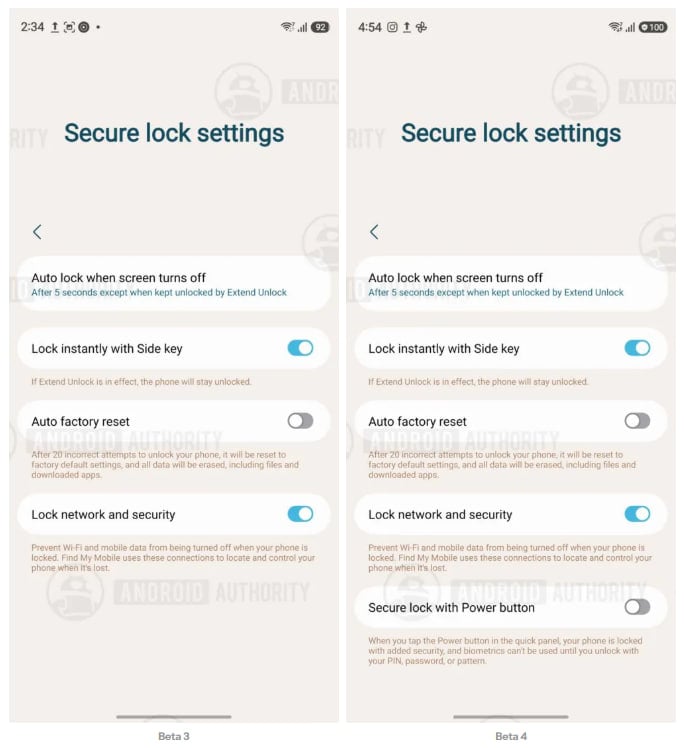
Image: One UI 9 Secure Lock Power Menu | Source: Android Authority
Once switched on, exiting the Quick Settings power menu immediately locks the phone and disables biometric authentication, just as it did in Beta 2 and Beta 3.
Meanwhile, the change affects only the Quick Settings power button, while the physical side button continues to trigger Lockdown by default.
The adjustment appears to be aimed at balancing convenience with security. Many users open the power menu simply to restart or power off their phone, and forcing Lockdown every time may have felt unnecessary.
If the feature remains unchanged, it should be a welcome quality-of-life improvement when One UI 9 reaches its Stable release.
Related article: